How to use this site
A quick tour of what's here and how to get the most out of it.
What's public, what needs sign-in
You can browse this site without signing in: the course catalog, the libraries (Solo Guitar Tabs, Lick Library), and the Forum are all readable to anyone. Lesson pages show their structure (title, description, headers) with the video / tabs / files replaced by a 🔒 placeholder until you sign in and have the right tier.
Sign-in unlocks the personal stuff: My Library, Repertoire, AI chat history, posting in the Forum, and saving lessons. Free Patreon followers get a useful slice (free preview lessons, posting in 🛠 Site Help, reacting in the Forum); paid tiers unlock the full course library, AI chat, and (at $40) private DM with Yuto.
Signing in & cancellations
Don't have a Patreon account yet? Follow Yuto first at patreon.com/yutokanazawa — following is free and unlocks the free courses + personal tools on this site. Once you've followed, come back here and click “Sign in” in the top-right.
Sign in with your Patreon account, or — if you joined through Skool — with your email address (we send a one-time login link).
Your access stays in sync with your membership's billing period. If you cancel mid-month, you keep access until your current paid period ends — the same expiration date Patreon or Skool shows on your subscription. After that date, paid lessons lock within ~1 hour (we re-check your status hourly so the transition is automatic).
Browsing courses
The Courses page lists everything available at your tier. Each course holds a sequence of lessons; each lesson has the video, tabs, and any relevant practice files together on one page.
The libraries (Solo Guitar Tabs, Lick Library) are searchable collections — use them when you know what you're looking for rather than working through a course front-to-back.
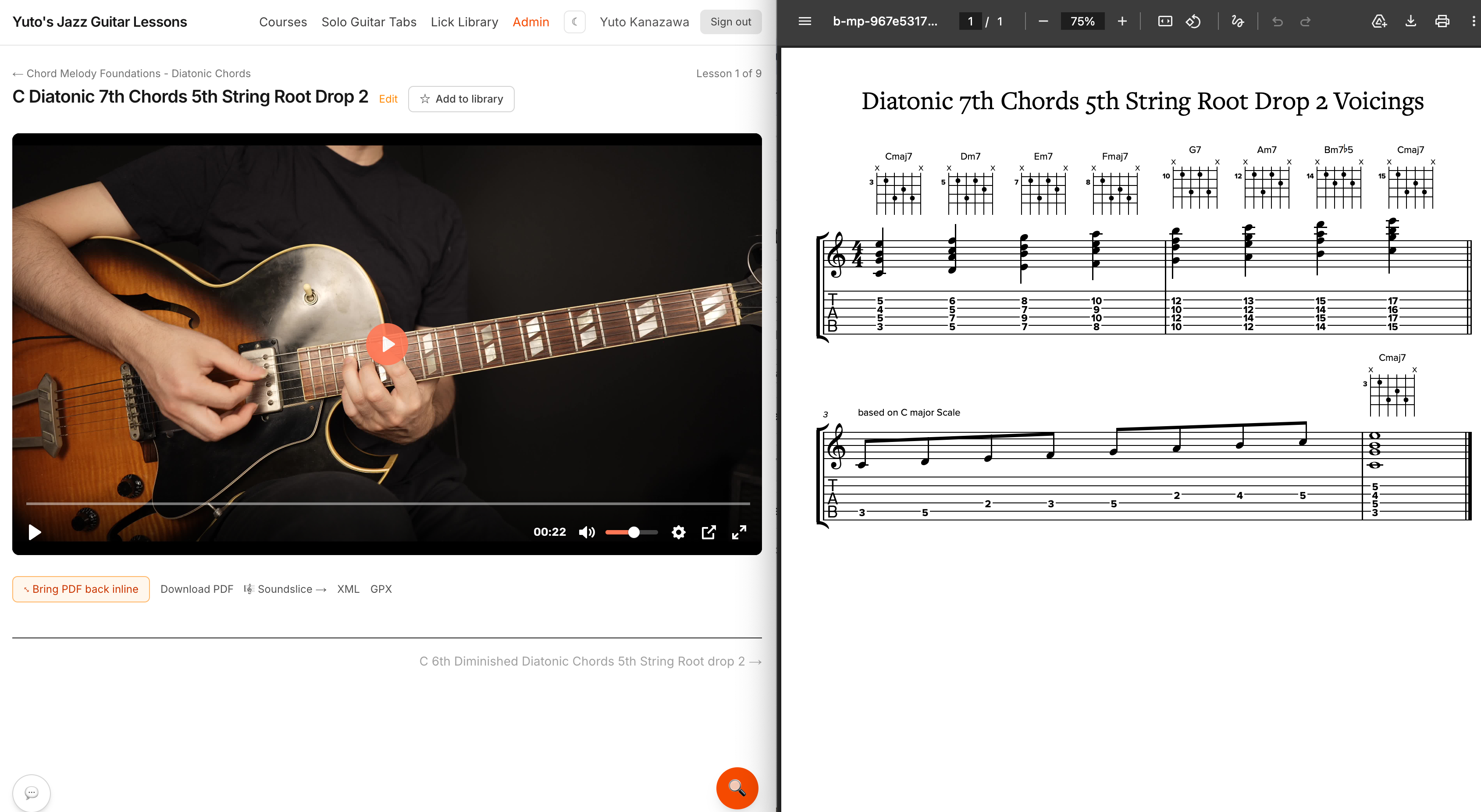
Practice with video + tabs side-by-side — on a lesson page that has a PDF, click ⤢ Pop out PDF above the tabs. The PDF opens in its own window pinned to the right half of your screen so you can keep the video playing on the left and read the tabs on the right while practicing. Hit ⤡ Bring PDF back inlineto close the popout when you're done.
My Library — your personal space
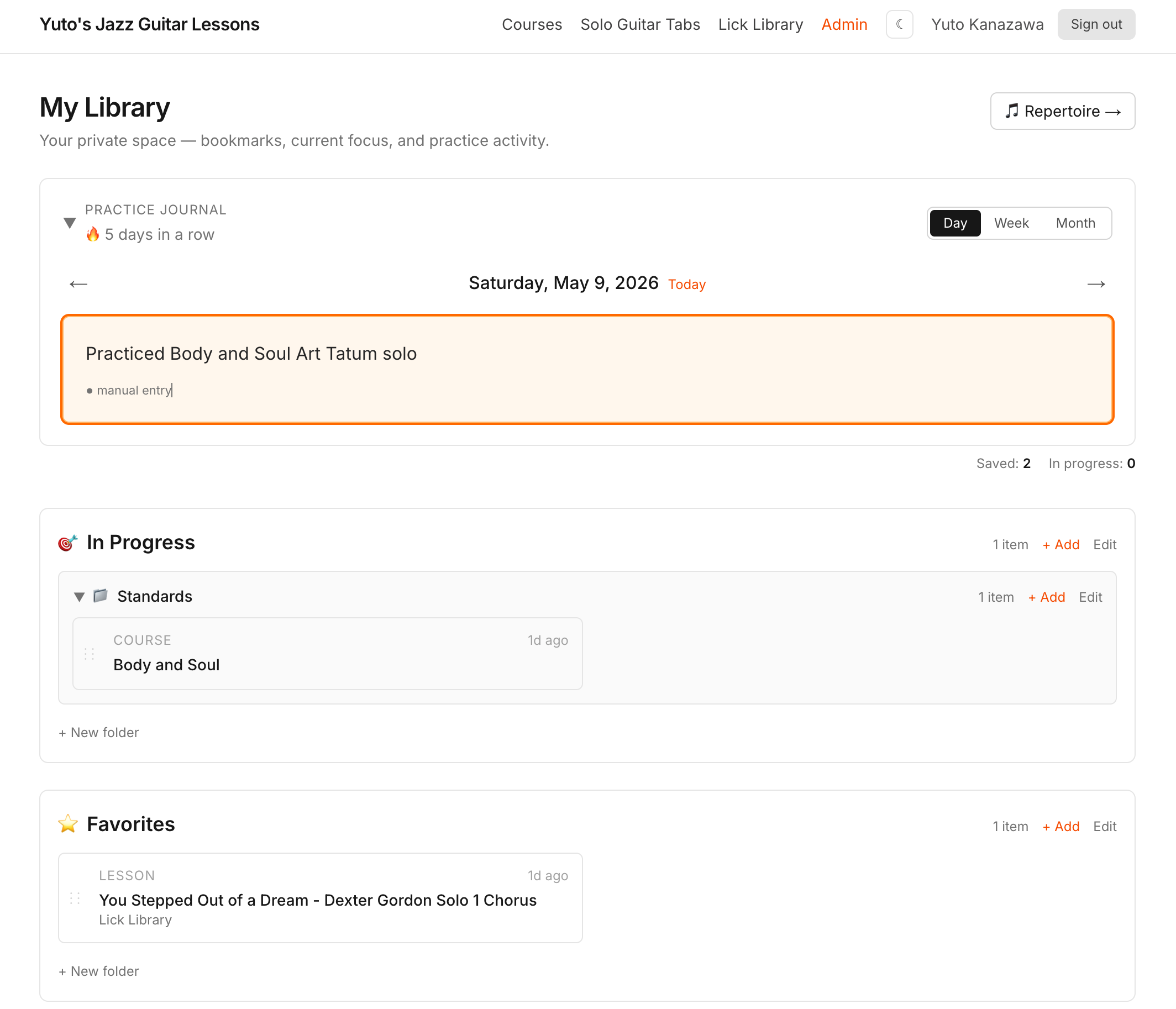
Visit My Library (the link in the top-right when you're signed in) for a private dashboard you control:
- Practice journal — a calendar where you can mark days you practiced and jot what you worked on. Day, week, and month views; the streak counts both lesson visits and manual marks.
- Lists — bookmark lessons or whole courses into In Progress / Favorites / Archives, or create your own custom list (with optional sub-folders). Drag items between lists to reorganise.
- + Add to library — every lesson and course page has this button at the top, which lets you save it without leaving the page.
Repertoire
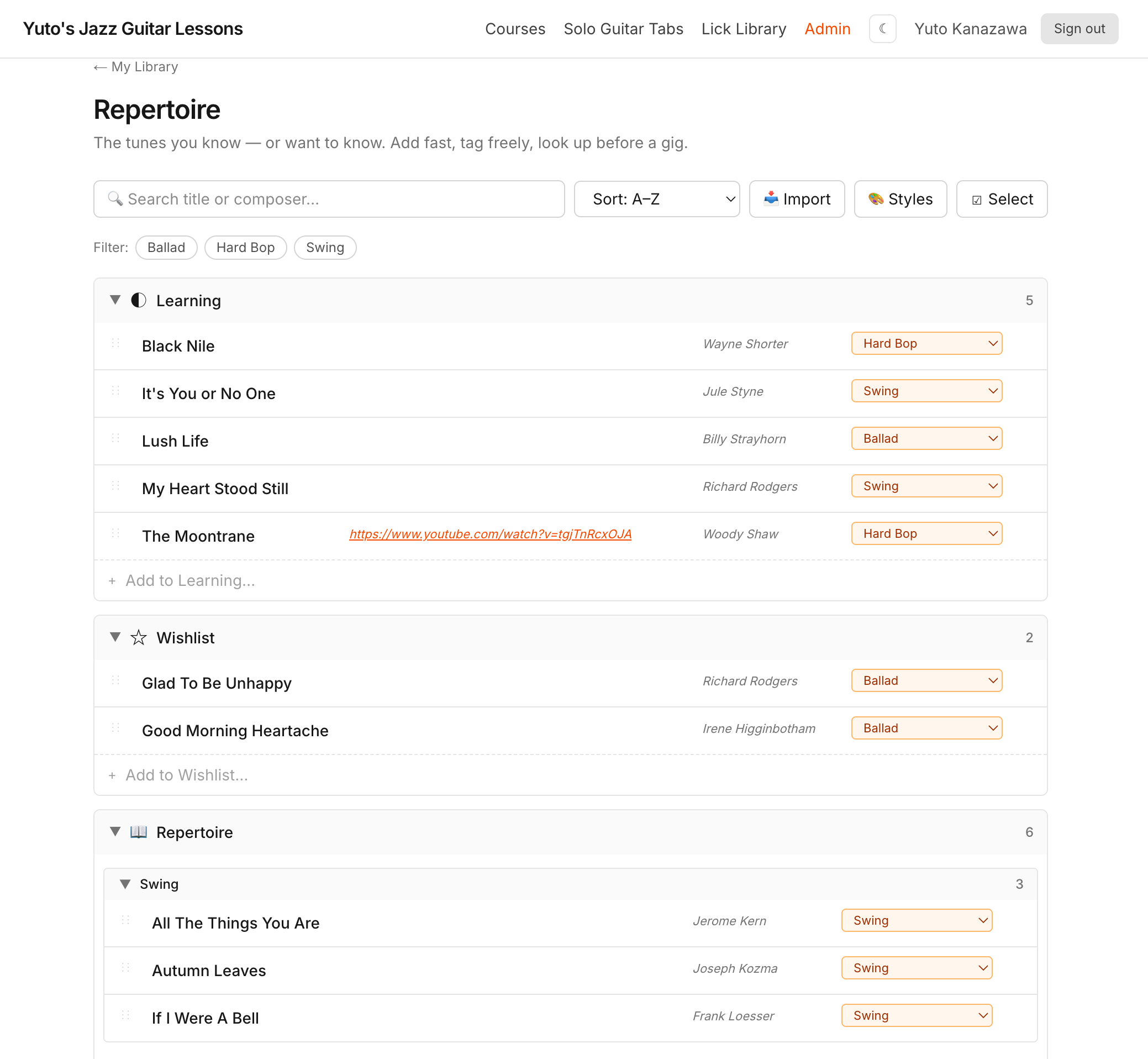
The Repertoire page is your personal jazz-standard list — one row per tune you know or want to know. Type a title, hit Enter, and it's in. Drag songs between drawers (Learning / Wishlist / Repertoire) to move them through your practice flow. The right-side dropdown sets the tune's style; click the title to rename, click the notes area to write reminders (URLs are clickable).
The Sort dropdown at the top lets you pick how songs order inside each drawer (Title, Status, Recently played). Drag a song to a new position and the sort flips to Custom (drag) — your manual order persists per drawer until you change the sort mode.
Each tune has a style tag — pick one (or several) from the right-side dropdown. Open the 🎨 Stylesbutton (or “⚙ Manage styles…” inside the dropdown) to add, rename, reorder, or delete entries so the list matches your own taxonomy.
Bulk import from Excel / CSV / Word / PDF via the 📥 Import button.
🗣️ Forum
The Forum is the community space — anyone (even logged-out visitors) can read; members post and react. The nav link shows an orange badge with the number of threads with new activity since your last visit.
Categories
- 📢 Updates — announcements from Yuto (new lessons / courses / gigs / site changes). Only Yuto posts; anyone can reply.
- 🎬 Review Request — post a recording of your playing and ask for feedback. Tell us the tune, your skill level, and 1–3 specific things you want feedback on. Short clips (30–90 sec) get more replies than full tracks.
- 🎵 Music Forum — open music discussion. Not just jazz, not just guitar — listening, transcriptions, theory, gear-adjacent talk, anything music-related.
- 🎸 Gear Talk — equipment, amps, strings, pickups, recording setup, signal chain. Photos of your rig encouraged.
- 🛠 Site Help — bugs, feature requests, billing / Patreon questions. Free members can post here too.
Who can do what
| Tier | Read | React 👍 ❤️ 🔥 | Reply | Post |
|---|---|---|---|---|
| Anonymous | ✓ | — | — | — |
| Free Patreon follower | ✓ | ✓ | 🛠 Site Help only | 🛠 Site Help only |
| Active patron ($10+) | ✓ | ✓ | ✓ (all) | ✓ (except 📢 Updates) |
Reactions, sort, view
- Reactions— 👍 ❤️ 🔥 below each top-level post. A single emoji counts more than silence; don't be shy.
- Sort — switch between New (default), Hot (engagement decayed by post age), Top this week, or Active (most replies).
- View — toggle between ☰ List and ▦ Gridon the right side. Grid is better when you're browsing for video posts.
- Categories — filter by category from the left sidebar (desktop) or the chips at the top (mobile).
Posting tips
- Write something at the top of the forum opens an inline composer — title, body, category. Click + Add video to attach a YouTube / Vimeo / Instagram URL. For PDF or image attachments use the full editor link inside.
- Ask specific questions. “Is my tempo too rushed?” gets better answers than “what do you think?”.
- One-line replies are fine. Not every reply needs a paragraph.
- Not sure where to post? Pick the closest fit — Yuto can move it later.
Who's “Theo”?
You'll see some posts authored by Theo with a Moderator badge. Theo is the forum's moderator persona — used for structural posts like welcome guides, category etiquette, and bug acknowledgments. The intent is to keep Yuto's own posts focused on the music. When Yuto wants to chime in personally on a thread, he does so as “Yuto” with a green ✓ Verified badge.
💬 Yuto-AI assistant chat (beta)
The chat button at the bottom-left of every page opens Yuto-AI — an assistant that helps you find the right Yuto content and figure out what to ask Yuto about next. It's NOT Yuto, and it doesn't coach. It does three things:
- Find— surfaces the most relevant Yuto lessons / Patreon posts / YouTube videos for what you're asking. Ask “chord melody intro for Body and Soul” or “where do I start with bebop” — get back specific links (with timestamps when possible).
- Clarify — when your question is open-ended, it asks one narrowing question to pull out the actual stuck point.
- Point— names the next step. Usually a Yuto lesson to watch. Sometimes a verified source (Real Book, recording). Sometimes the Forum (public Q&A) or — if you have the $40 tier — the “Ask Yuto privately” button.
The AI is grounded in Yuto's actual content (his Patreon posts, lesson tabs, YouTube transcripts) plus a reference library of chord progressions for the standards. When it doesn't have a verified source for something specific (a chord progression, voicing, rhythm pattern) it says so rather than making up a plausible-sounding answer. It also won't generate practice plans or reharmonizations — that's Yuto's job.
Beta version. Quirks happen. Feedback welcome — Forum or DM (if your tier has it).
🧠 AI memory — keep context across sessions
On My Library there's an “🧠 AI memory” box. Anything you write there gets prepended to every chat — so if you note “3 years in, working on Misty, stuck on the bridge,” the assistant can skip the basics next time and meet you where you are. Private to you; never shared.
During a chat, when you mention something worth remembering (skill level, current tune, gear, practice routine), the assistant shows a one-click 💾 Save to memory button next to Copy in the message toolbar. That appends the fact to your AI memory so future sessions inherit the context — no need to retype your background each time.
Asking Yuto for help — Forum vs DM
When the AI's pointers aren't enough and you want a human to look at your situation, two paths depending on your tier:
- 🌐 Post to Forum ($10 / $20 tiers) — on any AI reply, click Post to Forum in the message toolbar. The conversation transcript pre-fills a forum post so other members + Yuto can chime in. Public to all members.
- ✉️ Ask Yuto privately($40 tier — “Jazz Guitar Chat”) — same toolbar position, but the transcript becomes a private DM thread with Yuto. You can attach a video of your playing (up to 50MB); Yuto can attach a quick tutorial video back. Yuto reads each personally and responds when he has a useful angle — no committed response time.
Forum is faster and pulls in peer answers. DM is private and slower. Both work; pick based on whether the topic is general enough to share or specific enough to keep one-on-one.
Privacy & data — what's stored, who sees it
Short version: your AI chat is private to you. Yuto only sees a conversation when you explicitly forward it via the ✉️ Ask Yuto privately button. Until then, treat the chat like a personal scratchpad with a smart coach — it stays between you and the AI.
- AI chat history— your messages and the AI's replies are stored on this site, tied to your account, and are visible only to you (in the chat widget's history list). Yuto does NOT browse other people's chats.
- AI memory (🧠 box at /me)— anything you save there is fed into every chat as context. It's private to you. Yuto only sees it indirectly when you forward a chat to him as a DM (the chat used your memory as context, so the same context becomes visible inside that forwarded transcript). Edit or clear it from your My Library page.
- Direct messages (✉️ Ask Yuto privately) — available on the $40 Jazz Guitar Chat tier. Clicking the button on any AI reply forwards the conversation as a private DM thread to Yuto. You can attach a video of your playing (up to 50MB); Yuto can attach a video back. THIS is where Yuto reads what you wrote. Use it intentionally — it's the moment a real human enters the loop. Other members never see DMs.
- Forum posts (🌐 Post to Forum)— for $10/$20 tiers, the toolbar button on AI replies says “Post to Forum” instead of “Ask Yuto privately”. Forum posts are intentionally public to all members; Yuto and peers can chime in. Choose Forum for general questions, DM (if you have it) for private specifics.
- Anthropic (Claude API)— the AI itself runs on Anthropic's Claude. Each chat sends your message to Anthropic's API. Per their policy, API content isn't used to train their models, and short-retention safety logs apply on their side. Yuto's site doesn't add anything beyond what you sent.
- Deleting— open the chat widget > back arrow to your conversation list > hover any conversation and click the ✕ on the right to delete it. Deleted chats don't come back.
One-line: chats are yours; Yuto sees what you forward. Delete anytime. Don't share passwords, payment info, or anything you wouldn't want a person to read if you ever decided to forward.
Theme
The ☀ / ☾ button in the top-right toggles light / dark mode. Your choice is remembered on this device.
Got stuck or have an idea?
Send Yuto a message directly — bug reports, feature ideas, content requests, tier questions all welcome. He'll reply by email if a response is needed.